 Active Metrics
Live Sharing (Beacon)
Live sharing (the beacon) lets people you choose follow your outdoor run on a live web map. It’s off by default and entirely opt-in — nothing is ever shared until you turn it on, and nothing leaves your watch until a run is actually sharing. It’s an Active Metrics Pro feature. Recipients just open a link in a browser; they don’t need the app or an account.
Turning it on
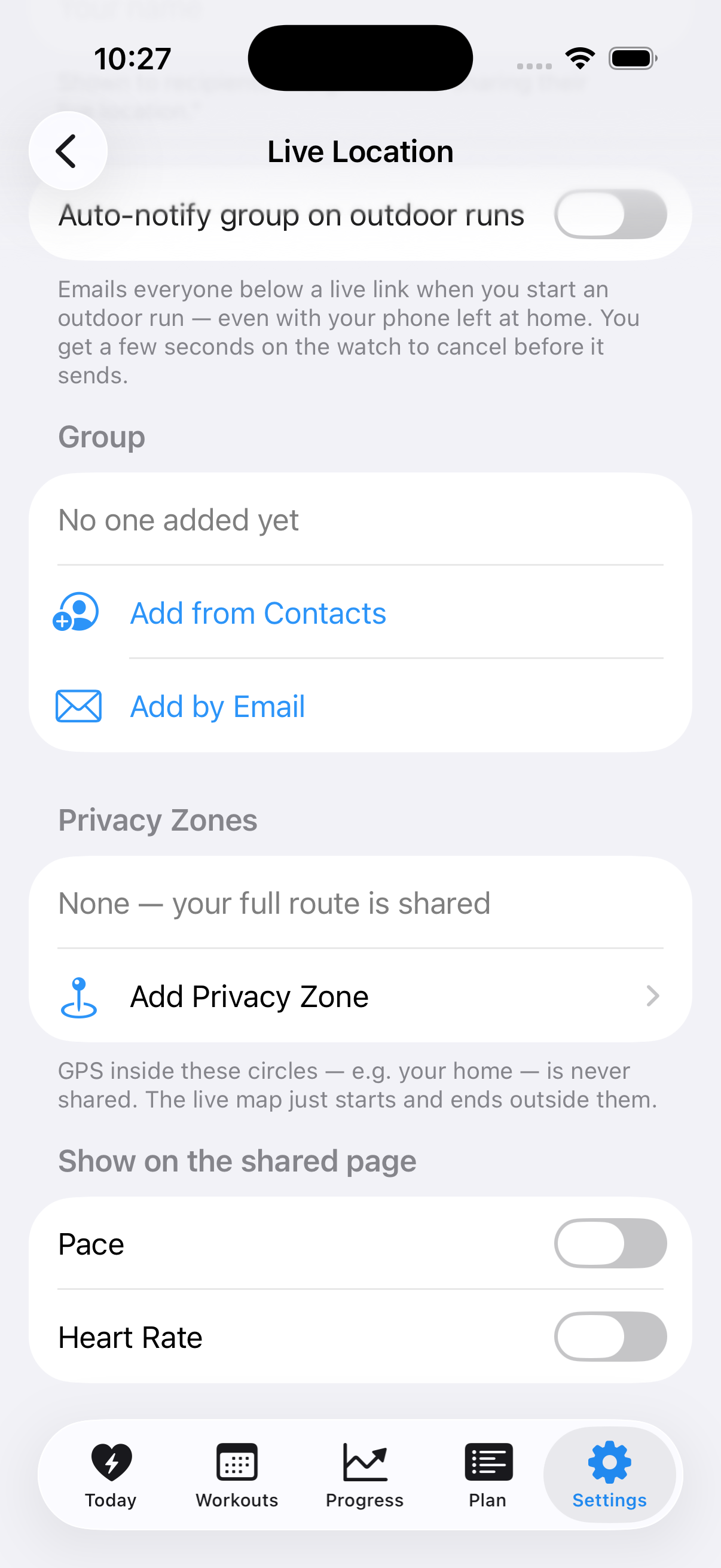
On your iPhone, open Settings → Live Location Sharing and turn on Share Live Location. Then set Your name — it’s what recipients see, e.g. “Kevin is sharing their live location.” Leave it empty and they get a generic message instead.
With the master switch off, no sharing ever happens, regardless of any other setting.
The notify group
The group is a list of email addresses that get a live link automatically. Add people with Add from Contacts (you pick the exact email address on their card — no Contacts permission needed) or type an address with Add by Email. Emails go to up to 10 recipients, each in a separate message.
These are real people’s email addresses, supplied by you — get their OK before adding them. Their contact info is their personal data.
Turn on Auto-notify group on outdoor runs and every outdoor run emails the group a link — even if your phone is at home, since the watch can upload over its own connection. Before anything sends, the watch shows a “Sharing in 8s — tap to cancel” banner: an 8-second window to back out. Nothing is created on our server and no email goes out until that window passes and your watch has a real GPS fix to share.
Sharing a single run
On the watch start screen, tap a sport to open its pre-start screen, then tap Share. If you have an auto-notify group set up, Share defaults on — turning it off is a per-run opt-out and no email is sent that run. Without a group, turning Share on starts a link-only session: your phone offers the link to send however you like.
During the run, a banner reports the honest state — counting down, waiting for GPS, hidden inside a privacy zone, or sharing live — and a small broadcast glyph stays on screen for the whole run while you’re sharing. Tap it and confirm Stop Sharing to end the share at any time.
What recipients see
The link opens a read-only live map: your position as you move, your display name, and the activity type. Pace and heart rate appear only if you turned on those toggles under “Show on the shared page” — with a toggle off, that data is never transmitted to our server at all, not merely hidden. The link can’t be used to end or change your session, only to watch it.
Privacy zones
A privacy zone is a circle — your home, your office — that the shared map never sees. Add one from the Live Location Sharing screen: pan the map so the crosshair sits on the spot, set a radius from 30 to 500 meters, and save.
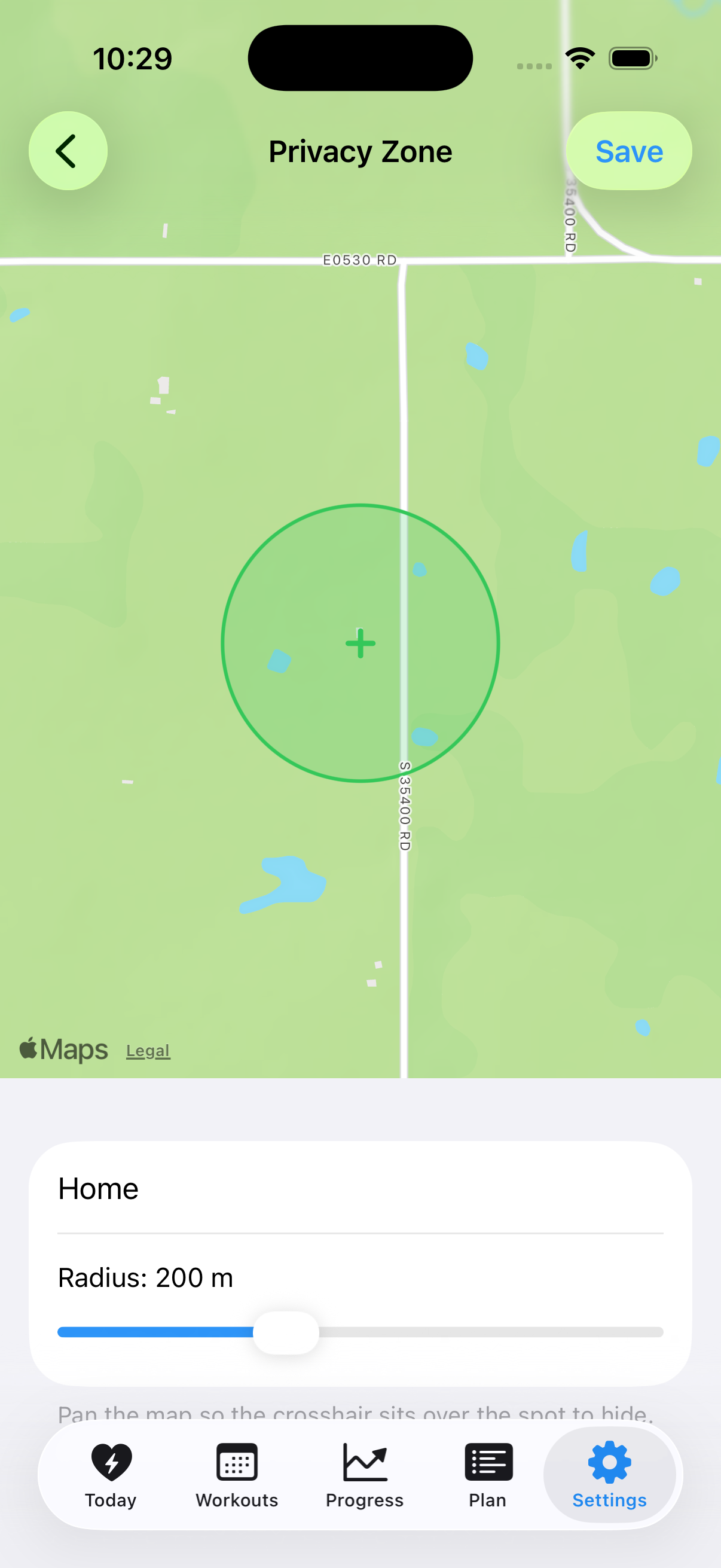
GPS fixes inside a zone are dropped on your watch, before upload — they never reach our server. To keep the boundary from being guessable, the watch also pads each zone’s radius with a fresh random margin every run (up to 25% of the radius, capped at 40 meters), so the exact edge can’t be inferred from where your dot appears and disappears. While you’re inside a zone, the watch shows “Hidden near home” instead of claiming you’re sharing live.
When sharing ends and data is deleted
Ending the workout ends the share. Deletion is automatic:
- The link keeps working for a grace period after the run ends — 30 minutes by default (adjustable from 60 seconds up to 24 hours), then the session and every location point are deleted.
- No matter what grace period is set, everything is unconditionally deleted within 6 hours of the session starting — even if the run never ends cleanly.
- You can also delete a session immediately instead of waiting out the grace period.
Stopping the share mid-run ends the session the same way. There’s no account and no history — once a session is deleted, it’s gone. Full detail, including exactly what the server stores per session, is in the privacy policy.